![Logo.svg]](https://help.fmiworks.com/hubfs/Logo.svg)
This article is for all users of FMI Works
Overview
Every asset in FMI Works has its own QR code. When someone scans the code with a phone or tablet camera, the browser opens the Asset Details screen for that exact asset.
This removes the step that most often goes wrong in the field - identifying the right asset. Instead of search by name, a technician standing in front of the equipment scans the label and opens the correct asset record.
It is most useful for:
- Raising a work order against the right asset while standing at the equipment
- Checking an asset's history, condition, warranty or attached documents during an inspection
- Verifying an asset register during an audit, stock take or accreditation review
Scanning a QR code does not bypass sign-in or permissions. The person scanning is asked to sign in to FMI Works, and can only open the asset if their role are site access already allow it.
Where to start
QR codes are generated from the assets already in your register. To get useful labels, make sure that:
- Your locations are added, so each asset is assigned to a site, building, floor and room. The location prints on the label.
- Your assets have been created. See How to add an Asset
- Your Asset Name is easily recognisable by a technician
- Your Barcode # is filled in for assets that already carry a numbered plate, if you want the barcode to appear alongside the QR code
Viewing the QR code for one asset
Go to Services Module > Assets > Asset List
On the Asset Details screen, look below the Asset Image on the right of the form. The QR code for that asset is shown under the heading QR Code.
.png?width=670&height=538&name=Asset%20QR%20Codes(1).png)
The QR code only appears on assets that have been saved. While you are adding a new asset, there is no code yet - save the asset first, then reopen it.
Printing QR codes for many assets
Use this when you are labeling a whole site, building or asset group in one go.
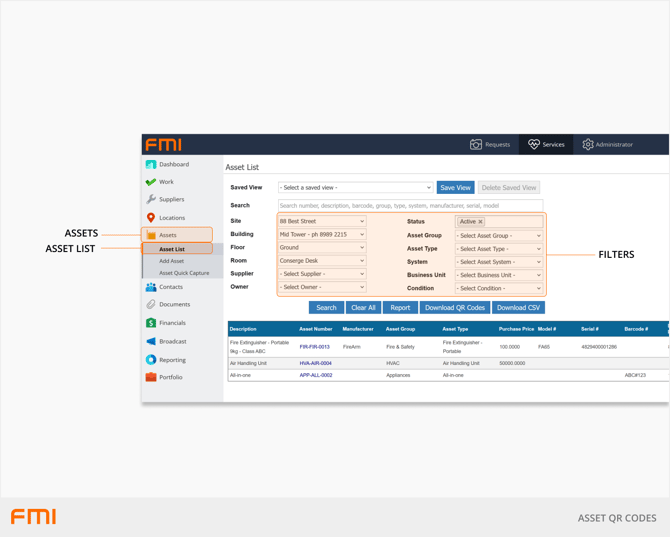
Go to Services Module > Assets > Asset List
Set your filters to select the assets you want labels for. Click Search to see the list of assets that match your filters.
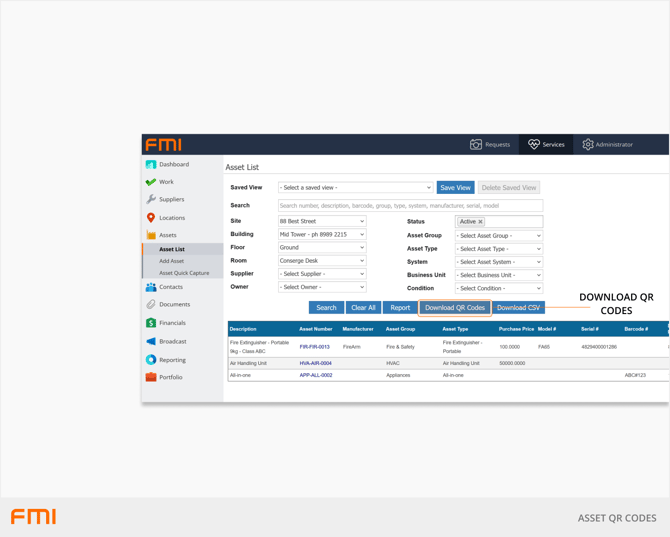
Click Download QR Codes. A print preview page opens showing a label for every asset that matched your filters.
Choose a Label layout from the dropdown at the top of the page.
Pick the Avery format that matches the label sheets you are printing on, or choose Custom to adjust the layout manually.
If using an Avery format, the QR size, Columns and Rows per page cannot be changed as they use the relevant Avery format settings
Click Print and complete your browser's print dialog. Load your label sheets, set the scale to 100% and leave the margins at their default.
Click Back to return to the asset list.
Label Layouts
Choosing an Avery format sets the page margins and the exact label size and spacing for that sheet, so the printed labels line up with the peel-off labels. The toolbar itself and any on-screen banners are never printed.
| Label Layout | Label Size | Per Sheet | What Prints on Each Label |
| Custom | You choose | Varies | QR code, asset name, barcode, number and location, in a bordered grid on plain A4 |
| Avery L7160 / L7060 | 63.5 x 38.1 mm | 21 | QR code, asset name, barcode number and location |
| Avery L7163 | 99.1 x 38.1 mm | 14 | QR code, asset name, barcode number and location |
| Avery L7165 | 99.1 x 67.7 mm | 8 | QR code, asset name, barcode number and location |
| Avery L7651 | 38.1 x 21.2 mm | 65 | Qr code and asset name only - the label is too small for the other lines |
The QR code and the text are scaled automatically to fit whichever label you choose, and lines that will not fit are left off rather than squashed. If you need every detail on an asset, use a larger label format.
Browsers often default to Fit to page or Shrink to fit, which moves every label a few millimetres off the sheet. Set the scale to 100% and keep the default margins. Before committing a box of label stock, print one label on plain paper and hold it against a label sheet to check the alignment.
What appears on each label
- The QR code - links to that asset's record in FMI Works
- Asset Name - in bold, as the first line of text
- Barcode # - only if one is recorded against the asset
- Location - the full page, for example Main Hospital > East Wing > Level 1 > Reception
- Levels you have not recorded are left out
Fields that are empty are skipped, so a label never prints a blank line or a placeholder.
The 500 label limit
A single print run produces a maximum of 500 labels. If your filters match more assets than that, the page prints the first 500 and shows a banner at the top:

To label a register larger than 500 assets, print in batches by using filtering, such as by site, by building, or asset group.